WordPress Errors · Site Recovery · SEO Health
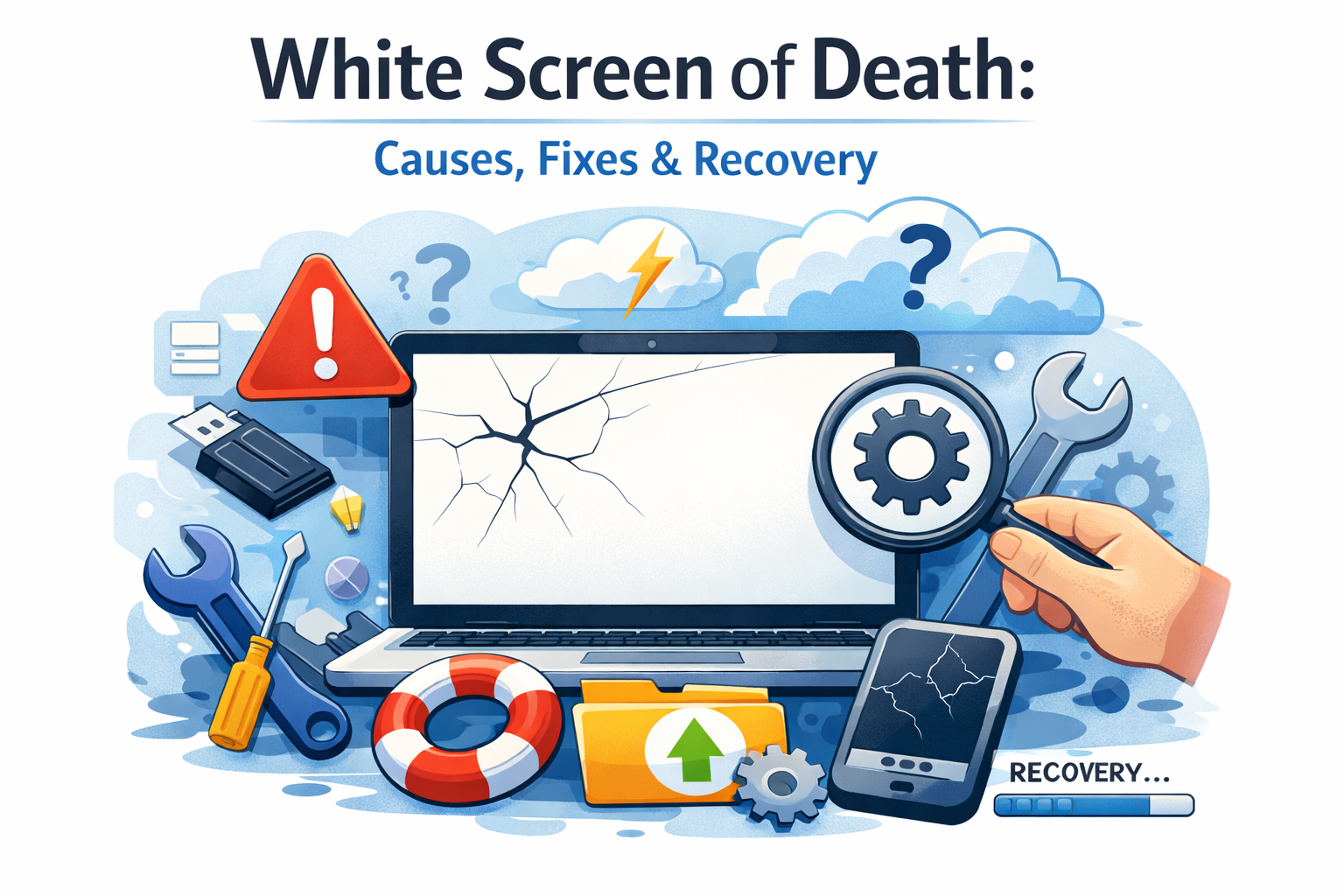
White Screen of Death:
Causes, Fixes & Full Recovery
You open your website and see nothing — just blank white. Here’s exactly what’s happening, why it occurs, and how to get your site back up fast.
The white screen of death is one of the most alarming things a WordPress site owner can encounter. One moment your site is live — the next, it’s completely blank, with no error message and no clue what went wrong.
Unlike a standard 404 or 500 error, the white screen gives you almost nothing to work with. No warning, no stack trace visible to the average user — just an empty white page staring back at you.
In this guide, we’ll break down every common cause, walk through each fix in plain language, and explain how to protect your Google rankings through and after the recovery process.
📋 Table of Contents
- What Is the White Screen of Death?
- Common Causes of the White Screen
- Fix 1: Deactivate All Plugins
- Fix 2: Switch to a Default Theme
- Fix 3: Increase PHP Memory Limit
- Fix 4: Enable WordPress Debug Mode
- Fix 5: Reinstall WordPress Core Files
- Protecting Your Google Rankings During Recovery
- Get Expert Help from Website Ka Doctor
What Is the White Screen of Death?
The white screen of death — often shortened to WSOD — refers to a state where your WordPress site renders a completely blank, white page instead of its actual content. There’s no visible error message, no branding, nothing.
It can affect your front end (what visitors see), your WordPress admin dashboard, or both simultaneously — which makes diagnosis tricky without knowing where to look.
The issue is almost always caused by a PHP error that WordPress silently suppresses in production mode. That’s why it looks blank — the error exists, but WordPress isn’t showing it to you by default.
💡 Good to Know: The white screen of death is one of the most searched WordPress problems globally — and in nearly all cases, it’s fixable without data loss if you approach it methodically.
Common Causes of the White Screen
The most frequent culprit is a plugin conflict or a broken plugin update. When a plugin contains bad code or conflicts with another installed plugin, PHP throws a fatal error — and your site goes white.
A poorly coded or incompatible theme is the second most common cause, especially after a WordPress core update that changes how themes interact with the system.
Other causes include an exhausted PHP memory limit, corrupted WordPress core files, a bad wp-config.php file, or a syntax error introduced during manual code edits.
🔌
Plugin Conflict
Most common cause — a faulty or clashing plugin breaks PHP execution
🎨
Broken Theme
An incompatible or corrupted theme causes the front end to go blank
🧠
Memory Limit
PHP runs out of allocated memory and fails silently
📄
Corrupted Files
Core WordPress files damaged during an update or manual edit
Fix 1: Deactivate All Plugins
Since plugin conflicts cause the majority of white screen errors, start here. If you can still access your WordPress admin, go to Plugins → Installed Plugins, select all, and choose “Deactivate” from the bulk actions menu.
If your admin dashboard is also showing a white screen, you’ll need to access your site via FTP or your hosting file manager. Navigate to wp-content/plugins/ and rename the entire plugins folder to something like plugins_disabled.
Once all plugins are deactivated, refresh your site. If it comes back, reactivate plugins one by one to identify the specific culprit. This method works in virtually every plugin-related case.
Fix 2: Switch to a Default Theme
If deactivating plugins doesn’t resolve the issue, your active theme is likely responsible. Via FTP, navigate to wp-content/themes/ and rename your current theme’s folder.
WordPress will automatically fall back to a default theme like Twenty Twenty-Four if it can’t find the active one. If your site reappears, the theme was the cause — contact the theme developer or switch to a well-supported alternative.
According to the official WordPress documentation, theme issues and plugin conflicts together account for the overwhelming majority of white screen errors reported by users.
🔗 Related: Dealing with other WordPress errors too? Website Ka Doctor offers a full WordPress health audit — covering errors, performance, and SEO recovery in one place.
Fix 3: Increase PHP Memory Limit
WordPress needs a certain amount of PHP memory to run. If your hosting plan allocates too little, complex operations — like loading a page with multiple plugins — can exhaust it and trigger a white screen.
Open your wp-config.php file and add the following line just before the “That’s all, stop editing!” comment:
define( 'WP_MEMORY_LIMIT', '256M' );If that doesn’t work, you may need to raise the limit in your php.ini file or ask your hosting provider to increase the allocation — some shared hosts cap this at a very low level by default.
Fix 4: Enable WordPress Debug Mode
If the above fixes haven’t resolved the blank screen, you need to see the actual PHP error. WordPress hides errors in production mode by default — but you can switch it to debug mode to surface them.
In wp-config.php, find the line define('WP_DEBUG', false); and change it to true. Refresh the page — you should now see the PHP error that was causing the white screen.
The WordPress Developer Handbook covers additional debug logging options that write errors to a log file instead of displaying them — useful when the front end is completely unresponsive.
Fix 5: Reinstall WordPress Core Files
If nothing else works, one or more WordPress core files may be corrupted. The good news is that reinstalling WordPress core is safe — it doesn’t touch your content, plugins, or uploads folder.
Download a fresh copy of WordPress from wordpress.org, extract it, and re-upload the wp-admin and wp-includes folders via FTP, overwriting the existing ones.
Do not overwrite your wp-config.php file or the wp-content folder — these contain your site’s configuration, themes, and media library.
🛠 White Screen Fix — Quick Reference
- ✔ Deactivate all plugins via FTP or admin panel
- ✔ Rename active theme folder to force a theme fallback
- ✔ Set PHP memory limit to 256M in wp-config.php
- ✔ Enable WP_DEBUG to surface the hidden PHP error
- ✔ Reinstall WordPress core (wp-admin + wp-includes only)
- ✔ Restore from a clean backup if all else fails
Protecting Your Google Rankings During Recovery
A white screen of death isn’t just a technical problem — it’s an SEO problem too. If Google’s crawler visits your site while it’s blank, those pages can drop in rankings or be temporarily de-indexed entirely.
Many sites that sought out google recovery sites after algorithm drops discovered that prolonged downtime — including white screen events — was the actual cause, not a penalty. Google doesn’t penalise for temporary outages, but extended blank periods do cause ranking loss through reduced crawl quality signals.
Once your site is restored, open Google Search Console and check the Coverage and Core Web Vitals reports. Submit your sitemap to prompt a fresh crawl and use the URL Inspection tool to request re-indexing of your key pages.
Recovery typically takes 1–3 weeks for rankings to stabilise — provided the site stays up, loads fast, and the underlying issue is fully resolved. Speed and uptime both play a role in how quickly Google restores your previous positions.
🛡 Prevention is Better Than Recovery
Always take a full site backup before updating plugins, themes, or WordPress core. Tools like UpdraftPlus automate daily backups to cloud storage — free of charge. A good backup turns a crisis into a five-minute fix.
Website Ka Doctor
White Screen? We’ll Fix It — Fast.
We diagnose and resolve white screen of death errors, plugin conflicts, PHP crashes, and WordPress core issues — usually within hours, not days.
Once your site is back up, we also handle the SEO recovery — so your Google rankings return alongside your website.
Same-day response · No fix, no fee guarantee
Final Thoughts
The white screen of death is alarming, but it’s almost never permanent. Work through the fixes in order — plugins first, then theme, then memory, then debug mode, then core reinstall — and you’ll find the cause every time.
Once your site is restored, act quickly on the SEO side. Submit your sitemap, check Google Search Console for coverage issues, and monitor your rankings over the following two to three weeks.
If you’d rather have an expert handle the diagnosis, fix, and recovery from start to finish — Website Ka Doctor is here. We treat your website like a patient — find the problem, fix it properly, and keep it healthy long term.
Website Ka Doctor
We specialise in WordPress error recovery, website performance, and SEO health — so your site stays live, fast, and ranking.