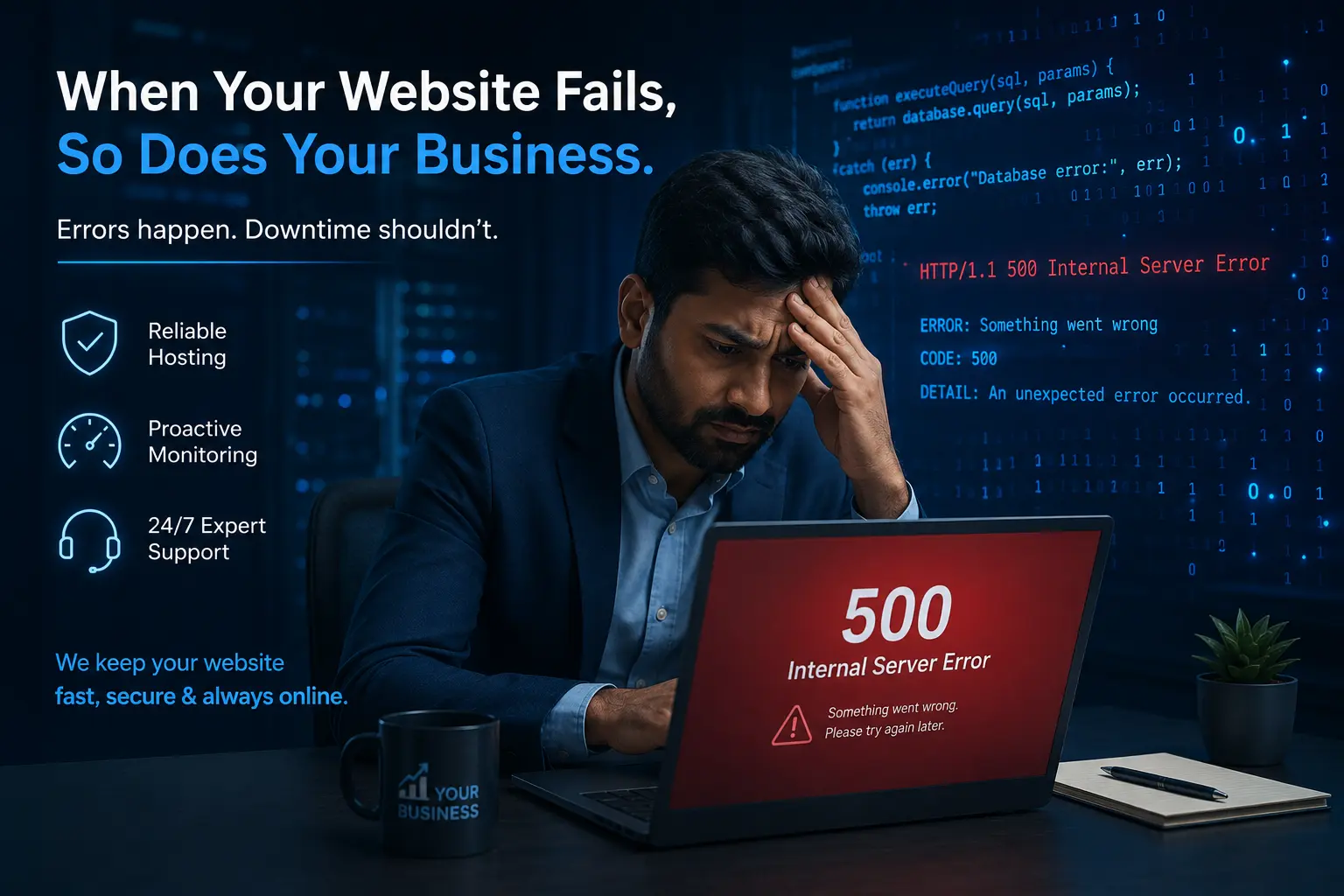
500 Internal Server Error: What It Means and How to Fix It
⚡ Quick Answer
A 500 Internal Server Error means your web server encountered an unexpected problem and could not complete the browser’s request. It is a server-side issue — not caused by the visitor. Common causes include a corrupt .htaccess file, exhausted PHP memory, broken plugins, or incorrect file permissions. Most cases can be fixed in under 30 minutes with the right steps.
What Exactly Is a 500 Internal Server Error?
When you open a website, your browser sends a request to the web server. The server processes it and sends back a response with an HTTP status code. A 500 Internal Server Error is the server’s way of saying: “Something went wrong on my end, and I don’t know exactly what.”
Unlike a 404 error (page not found), which tells you a specific resource is missing, the 500 error is a generic catch-all for server-side failures. You might see it displayed as:
Common 500 Error Variations:
- “500 Internal Server Error”
- “HTTP 500 – Internal Server Error”
- “HTTP Error 500”
- “500 Error”
- “The website cannot display the page”
- “Temporary Error (500)”
No matter how it appears, the root cause is always on the server side — meaning visitors cannot fix it themselves. Only the website owner, developer, or hosting provider can resolve it.
⚠️ Warning for Business Owners
Every minute your website shows a 500 error, you are potentially losing customers, leads, and revenue. For an e-commerce website in India, even 10 minutes of downtime during peak hours can mean thousands of rupees in lost sales. Act fast.
Top Causes of a 500 Internal Server Error
Understanding the root cause is the first step to fixing the error. Below are the most common culprits, especially for WordPress websites hosted in India:
| Cause | How It Happens | Difficulty to Fix |
|---|---|---|
| Corrupt .htaccess File | Faulty rewrite rules or manual edits | Easy |
| PHP Memory Limit Exceeded | Site script requires more RAM than allocated | Easy |
| Plugin or Theme Conflict | New plugin update breaks compatibility | Moderate |
| Wrong File Permissions | Incorrect chmod values via FTP or cPanel | Moderate |
| PHP Script Timeout | Script runs too long without completing | Advanced |
| Server Misconfiguration | Apache/Nginx config errors on the host | Advanced |
How to Fix a 500 Internal Server Error — Step by Step
Follow these troubleshooting steps in order. Each one addresses a specific potential cause and takes only a few minutes to test.
Reload the Page and Clear Your Cache
Sometimes the error is a one-off glitch. Press Ctrl + Shift + R (Windows) or Cmd + Shift + R (Mac) to force a hard reload. Also clear your browser cache and cookies. If the error disappears, it was temporary.
Check and Regenerate Your .htaccess File
In your WordPress Dashboard, go to Settings › Permalinks and click Save Changes — this regenerates the .htaccess file. Alternatively, use FTP to rename your existing .htaccess to .htaccess_old and test the site.
Deactivate All Plugins
Via FTP, navigate to wp-content/ and rename the plugins folder to plugins_old. Reload the site. If it works, a plugin was the culprit — rename the folder back, then reactivate plugins one-by-one to find the offender.
Increase PHP Memory Limit
Open your wp-config.php file via FTP and add this line before “That’s all, stop editing!”:
define('WP_MEMORY_LIMIT', '256M');
Check File and Folder Permissions
Using FTP or your cPanel File Manager, set file permissions to 644 and folder permissions to 755. Permissions like 777 on files are a security risk and can cause server errors with certain hosting configurations.
📊 Did You Know?
43%
of small business websites in India experience at least one significant downtime event per month due to server-side errors. Source: NASSCOM Digital India Infrastructure Report
How a 500 Error Affects Your SEO Rankings
Many website owners in India focus on the immediate user impact of server errors and overlook the SEO consequences. Google’s crawl bots treat 500 errors seriously.
According to Google’s official Search Central documentation, if Googlebot encounters a 500 error, it will retry the URL multiple times. If the error persists, Google may temporarily remove the URL from search results and reduce the crawl rate for your entire domain.
- ✅ Less than 1 hour: Usually no SEO impact — Google will re-crawl and index normally
- ⚠️ 1–24 hours: Possible temporary deranking for affected pages
- 🚨 24+ hours: Risk of de-indexing, significant ranking drops, and loss of organic traffic
🚨 Is Your Website Showing a 500 Error Right Now?
Our expert team at WebsiteKaDoctor can diagnose and fix your server error fast — often within the same day. Don’t let downtime cost you customers.
When to Call a Professional Web Developer
Not every 500 error can be fixed with the DIY steps above. You should seek professional help if:
- The error appears only on certain pages, not the whole site
- You’ve tried all the steps above and the error persists
- You don’t have FTP access or are unfamiliar with
wp-config.php - Your PHP error logs show unfamiliar code errors or database connection failures
- The error started immediately after a server migration or hosting change
- Your website handles transactions (e-commerce, bookings, payments) and downtime has financial consequences
A professional can also audit your server environment for underlying vulnerabilities that may have triggered the error, including malware injections that sometimes cause 500 errors on Indian hosting environments.
Explore Our Services
🛠️
Website Maintenance
Prevent 500 errors before they happen with our monthly maintenance plans for Indian businesses.
Learn More →
⚙️
WordPress Support
Expert WordPress error fixing, plugin conflict resolution, and server optimisation services.
Learn More →
How to Prevent 500 Errors in the Future
Fixing the error is only half the job. To keep your website running smoothly and protect your search rankings, adopt these best practices:
Outdated software is one of the top causes of compatibility-related 500 errors in WordPress sites across India.
Always have a recent backup before making changes. A clean restore takes minutes; debugging a corrupted installation can take hours.
Enable PHP error logging and check your server’s error_log file regularly. Early warnings appear here before they cause visible errors.
Tools like UptimeRobot (free) alert you the moment your site goes down — often before your own customers notice.
Frequently Asked Questions
🛡️ WebsiteKaDoctor
Don’t Wait for Your Website to Break.
Get Proactive Maintenance Today.
Join hundreds of Indian businesses that trust WebsiteKaDoctor to keep their websites fast, secure, and always online.